













Secure Your World

From desktops to mobile, we've got you and your family totally covered.

Introducing our new updated internet security product line.
More secure and easier to use than ever.


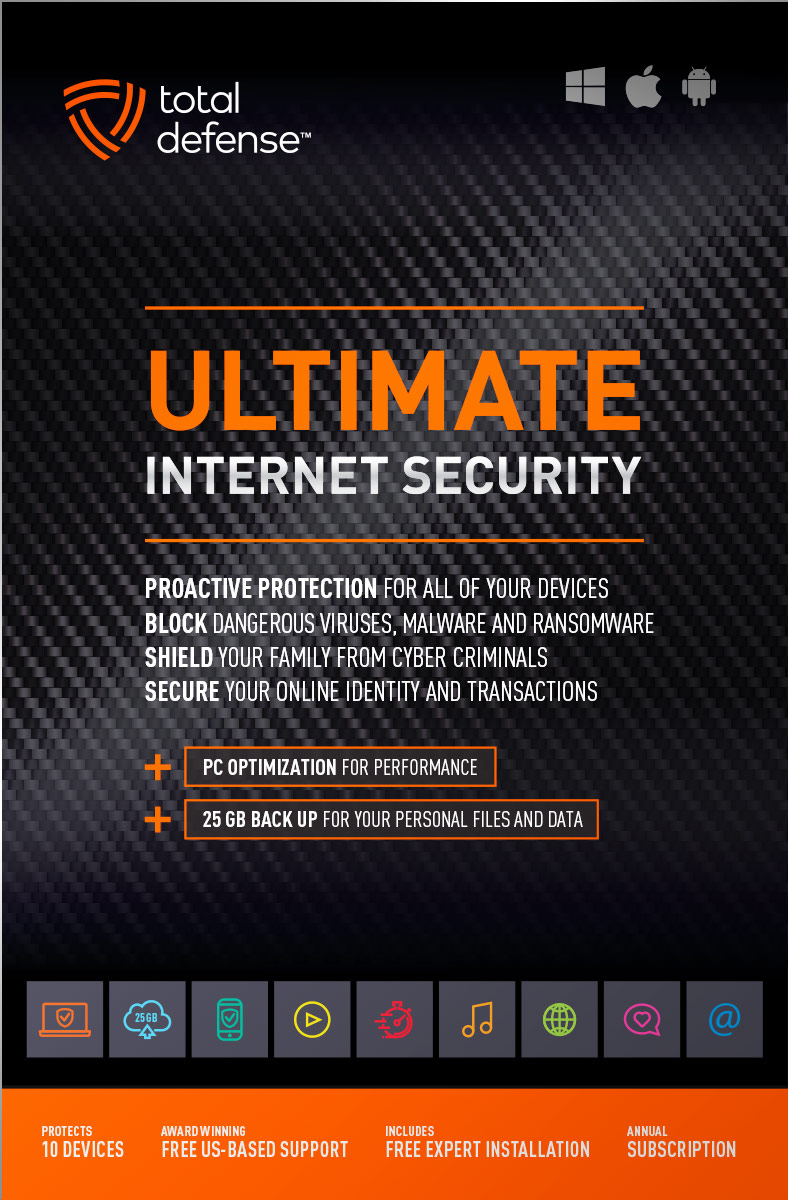
Ultimate Internet Security

High performance virus detection without slowing you down – on all your devices – while you bank, shop, and connect on social networks with total peace of mind.

  • Automatically detect and remove any threat, without negative impact on your speed
  • Keep your PCs running like new with smart PC optimization technology
Learn More »
original
4.9(42 Reviews)
$109.99
10 Devices
25GB Online Backup
Windows Mac Android

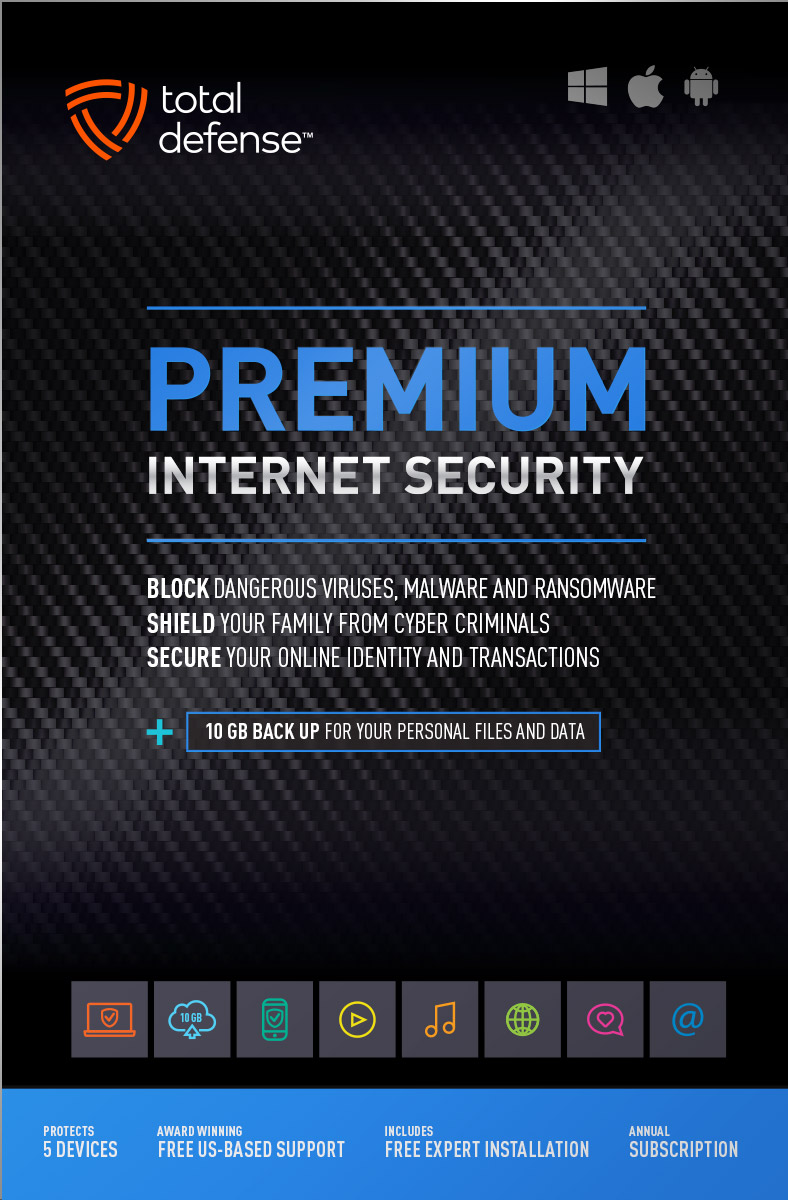
Premium Internet Security

Bestseller Internet Security

Our Bestseller! We’ve got you covered – total protection for the devices in your home – PCs, Macs, Smartphones & Tablets.

  • Shop, bank and explore your social network without worry
  • Protect your information from cyber criminals when you’re shopping and banking online
Learn More »
original
4.9(72 Reviews)
$69.99
$89.99
Save $20
5 Devices
10GB Online Backup
Windows Mac Android

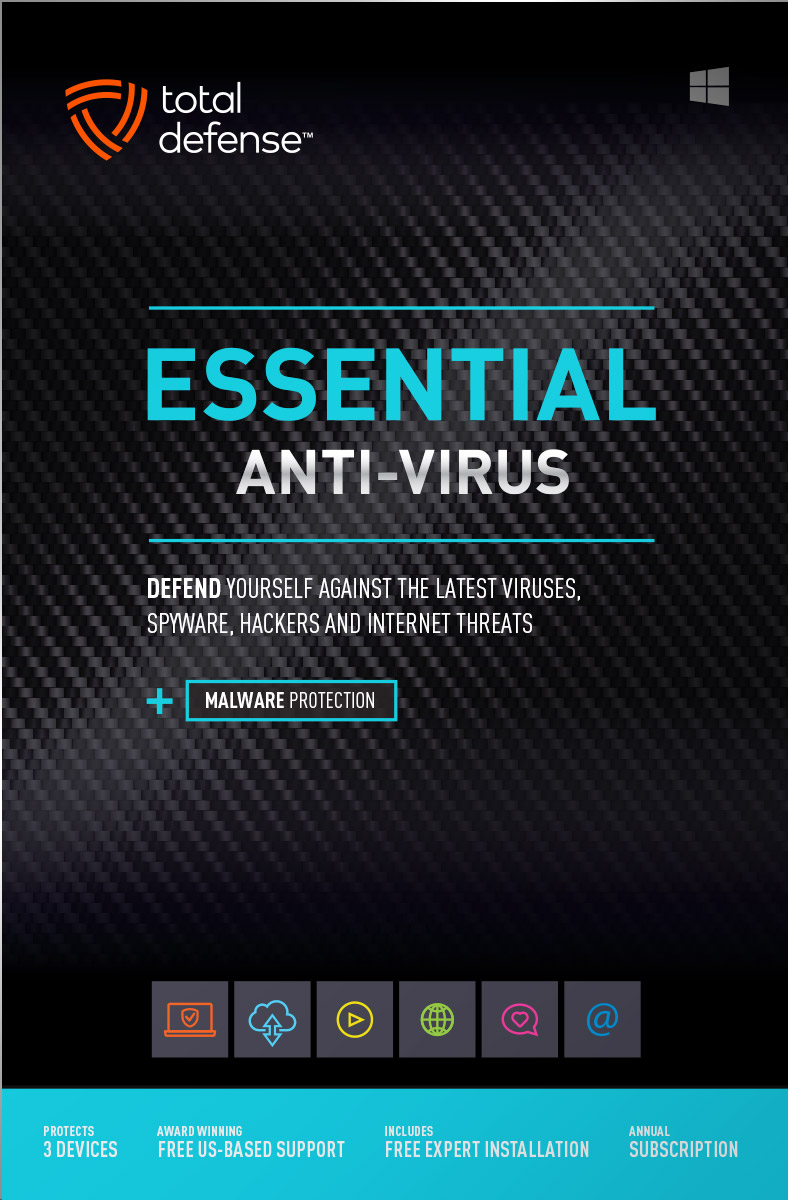
Essential Anti-Virus

Viruses constantly evolve, our Anti-Virus security ensures you’re totally covered with smart and powerful protection for your Windows desktops and laptops.

  • Keep your devices safe from malware, spyware, ransomware, and harmful viruses.
  • Free automatic updates; virus-free, hassle-free, and worry-free.
Learn More »
original
4.9(35 Reviews)
$39.99
$59.99
Save $20
3 Devices
Windows
Buy with Confidence
Free US-Based Support
Certified Secure Checkout
60 Day Money Back Guarantee

What works for you?

Use our selection tool to help you choose the internet security that’s right for you.

Compare

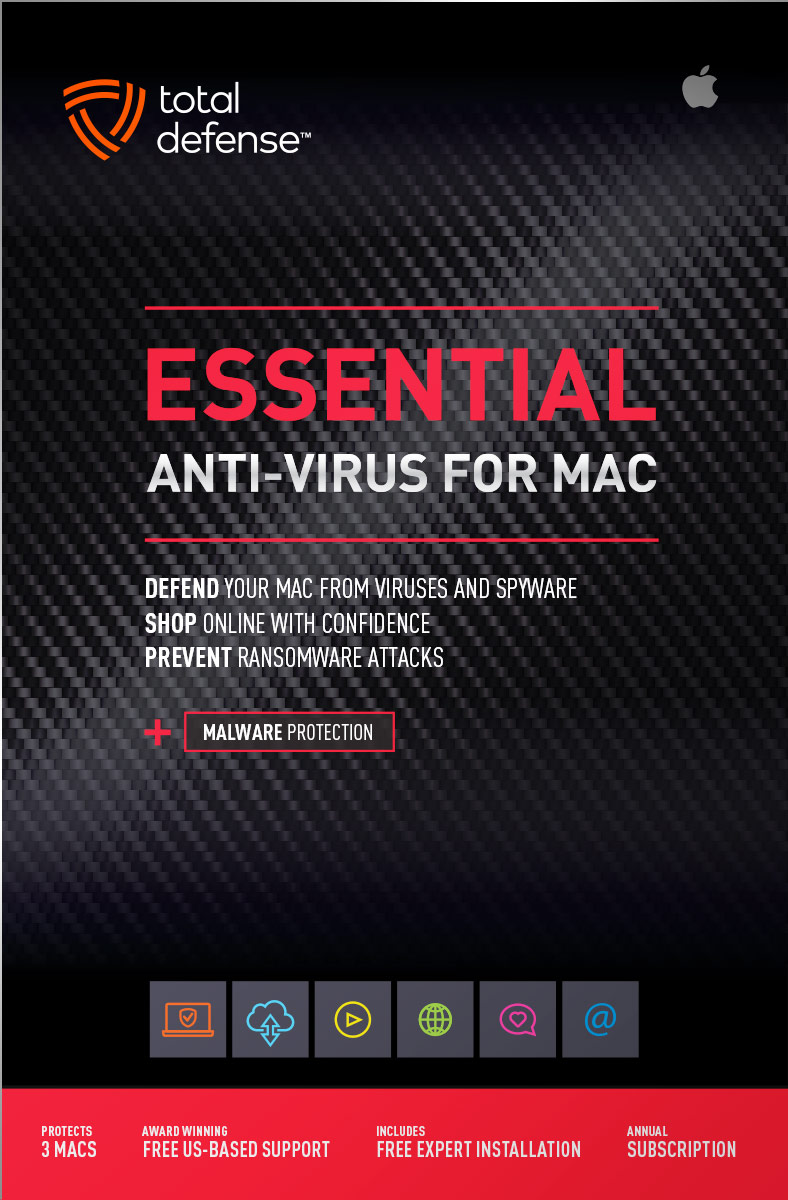
Anti-Virus for Mac

Total Defense 2019 version

Viruses constantly evolve, our Anti-Virus for Mac security ensures you’re totally covered with smart, and powerful protection. Give your Mac maximum protection without compromising speed and performance.

  • Advanced features keep your Mac safe from malware, spyware, ransomware, and harmful viruses so you can browse, shop, and bank with confidence.
  • Ultra fast malware scanning – and ironclad protection without slowing you down. So fast and discreet, you won’t even know it’s there, working to keep your Mac safe.
Learn More »
original
4.9(12 Reviews)
$39.99
$59.99
Save $20
3 Macs
Mac Anti-Virus

PC Tune-Up

Total Defense 2019 version

Automatically scan, fix, and update your PC – improving your Windows desktop or laptop’s speed – so you can enjoy faster startups, smoother browsing, and like-new performance.

  • Boost PC Performance – automatically improve PC startup time, Internet speed and program performance
  • Removes junk files, eliminates unnecessary programs, updates vulnerable applications, and reclaims more space on your PC.
Learn More »
original
4.9(16 Reviews)
$39.99
$49.99
Save $10
3 Devices
Windows

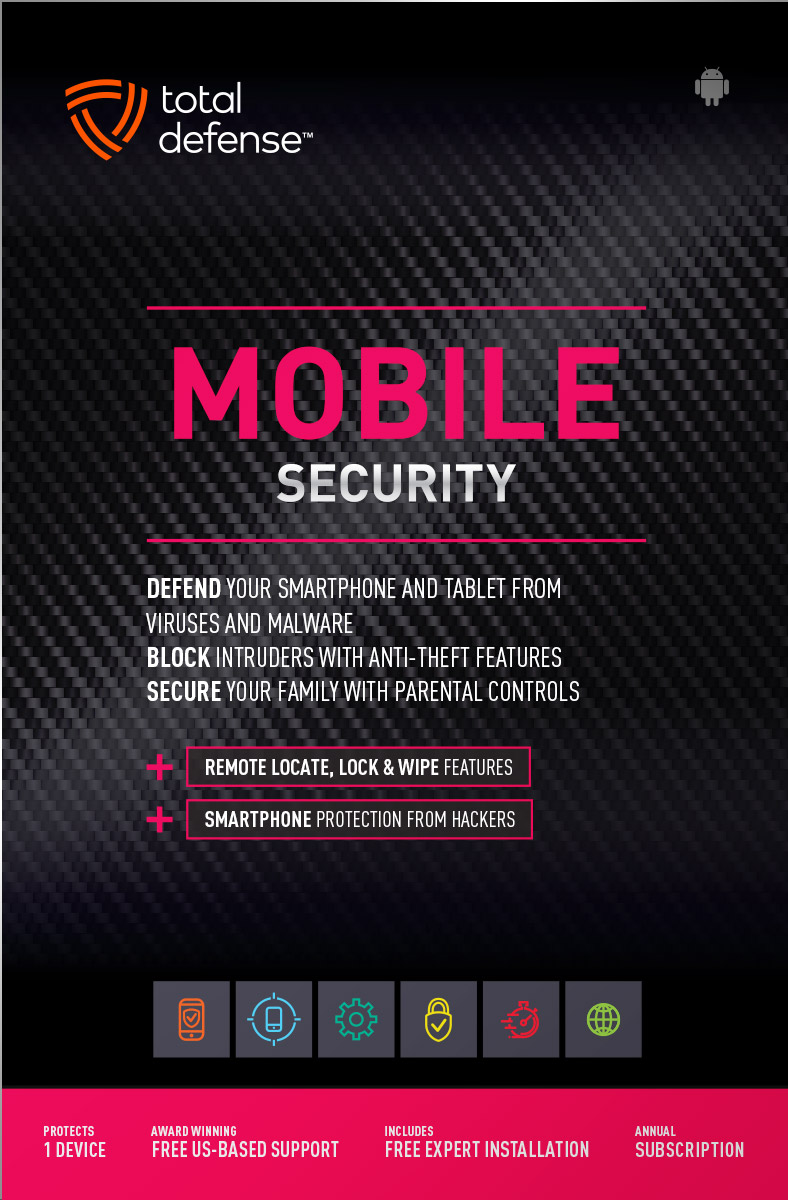
Mobile Security

Total Defense 2019 version

Comprehensive mobile protection for Android devices. Fend off malware, block intruders, lock or erase your data if you lose your phone.

  • Powerful virus & spyware detection and removal – virtually no battery impact
  • Remote lock & wipe for lost or stolen devices
  • Remote GPS location for lost or stolen phones
Learn More »
original
4.9(19 Reviews)
$19.99
1 Device
Android

System Requirements

Supported Operating Systems
  • Windows 11 (64-bit)
  • Windows 10 (32 & 64-bit)
  • Windows 8.1 (32 & 64-bit)
  • Macintosh OS X - 10.12 or later
Required for all Installations
  • 2 GB RAM
  • 1 GHz or faster processor
  • Internet Explorer 11 or Microsoft Edge
  • 1 GB of available hard disk space
  • 1024 x 768 or higher screen resolution
  • Internet access
Supported Browsers for Web Filtering
  • Internet Explorer 11
  • Microsoft Edge
  • Chrome v40.0 and higher
  • Firefox 35.0 and higher
For Smartphone & Tablet Security
  • Android 5.0 or higher
Usage
  • For personal and family use only. Not for business or commercial use.

Virus-free. Hassle-free. Worry-free.

Security designed for people, around people.
 
VB100 Certified
VB100 Certified

Our virus and malware protection is put through the toughest tests to ensure your are protected.

Learn More >

Free US Tech Support

Our friendly US-based team is standing by to assist with customer care & technical support.

Learn More >

Money Back Guarantee

If you're not completely satisfied, we'll refund your money within 60 days of purchase.

Learn More >

Money Back
Virus-Free Guarantee

We're so confident in our virus protection, we will remove it for free or give your money back.

Learn More >

Rated #1 anti-virus software company on Consumer​Affairs.com

We always strive to create the best customer service experience and our customers agree. Total customer satisfaction is our ultimate goal.
Read reviews from our customers>
Total Defense

Internet Security and Safety Center

Helpful tips and articles with practical steps you can follow to improve your online safety

Total Defense Security Tip of the Day

03.31.26

How to tell if a device on your Wi‑Fi network doesn’t belong (and what to do about it)

Your home Wi‑Fi network is the gateway to your digital life — your banking apps, smart home gadgets, personal files, work data, and every device your family owns. But as more devices connect to your network, spotting an unexpected one becomes harder than ever. The average household now has 22 connected devices, from TVs and tablets to smart doorbells and appliances.

With that many gadgets online at once, an unfamiliar device joining your network doesn’t just consume bandwidth — it can signal a serious security threat. Unauthorized devices can intercept traffic, spread malware, or act as a foothold for attackers. In fact, modern households experience an average of 29 cyberattack attempts per day, highlighting how frequently attackers probe home networks.

Here’s how to tell if something on your Wi‑Fi network doesn’t belong — and how to protect yourself.

Why Unauthorized Devices Are a Real Risk

Unknown devices aren’t just freeloaders; they’re potential attack vectors. According to network security analysis, unauthorized or unmanaged devices often introduce vulnerabilities because they bypass normal security controls. They may expose sensitive information, perform man‑in‑the‑middle attacks, or serve as an entry point for hackers.

Even legitimate devices that you forgot about — an old tablet, a smart plug, or a camera you never updated — can become security liabilities if they run outdated firmware.

Step 1: Check Your Router’s Device List

Your router’s admin panel is the first place to look.

How to access it:

  1. Type your router IP (often 192.168.0.1 or 192.168.1.1) into your browser.
  2. Log in using your admin credentials.
  3. Look for a section labeled Connected Devices, Client List, or Device Manager.

Most routers show:

  • Device names
  • MAC addresses
  • IP addresses
  • Whether a device is wired or wireless
  • Connection history

If you see a cryptic device name, don’t panic — not all devices identify themselves clearly.

Step 2: Compare Every Device to Your Household Inventory

Make a quick mental or written list:
Phones, laptops, tablets, smart TVs, speakers, thermostats, cameras, game consoles, streaming sticks, appliances.

If something doesn’t match, you may have found a rogue device.

Step 3: Use an IP Scanner for More Detail

Tools like Fing, Advanced IP Scanner, or Paessler’s network scanner can reveal additional information your router may not show, including:

  • Device manufacturer
  • Device type
  • Open ports
  • Last seen timestamps\

These tools can help identify whether that weird “Unknown‑Device‑AX92” is just your smart vacuum or something more suspicious.

Step 4: Look for Signs a Device Doesn’t Belong

Watch for:

  • Devices from unfamiliar manufacturers
  • Multiple new devices joining at odd hours
  • Devices reconnecting repeatedly
  • Anything labeled “Generic,” “Unknown,” or “ESP” (often IoT boards)

If you’re unsure, disconnect Wi‑Fi briefly. Devices that stop responding are likely legitimate household items.

Step 5: Secure Your Network Immediately If Something Looks Suspicious

If you confirm or strongly suspect an unauthorized device:

1. Change Your Wi‑Fi Passwords

Update both your main and guest networks.

2. Enable Network Notifications

Some routers alert you when a new device joins. Turn this on.

3. Disable WPS

WPS can allow attackers to bypass your password.

4. Update Router Firmware

Unpatched routers are a major exploit target.

5. Segment Your Network

Put IoT devices on a guest network to limit access if one becomes compromised.

Bottom Line

You can’t protect what you don’t know is there. With cyberattacks hitting home networks almost 30 times per day, awareness and good network hygiene are essential for keeping your Wi‑Fi secure.

By checking your connected devices regularly and tightening your router settings, you dramatically reduce the risk of someone sneaking into your network — and into your digital life.



How cybercriminals are using AI to automate identity theft (and how you can stay safe)

Identity theft has always been a serious threat, but artificial intelligence has supercharged the problem. Cybercriminals are no longer relying on manual methods or simple scams — they’re now using AI to automate identity theft at a scale and speed we’ve never seen before. This new wave of AI‑powered fraud is more convincing, more personalized, […]
Read More»

Questions? Our friendly award winning US-based support team is happy to help and it's free.

1-877-906-8816 Weekdays 9am – 5pm, Eastern Time USA

Customer Service Team of the Year - Cyber Security Excellence 2022 Globee Award Gold Customer Service Department of the Year - 2022 Stevie Awards Bronze


