


Announcing our new 2026 internet security product line.
More secure and easier to use than ever.
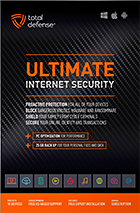
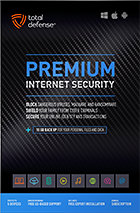
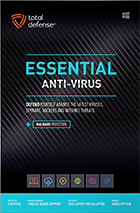
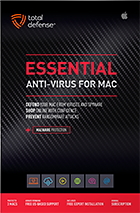

Try our Best Antivirus Protection Free for 30 Days
Free Trial DownloadStart your Free 30 day, no credit card needed, no hassle trial today.
Secure your digital life.
Total Defense makes internet security easy for you and tough on destructive malware. We don’t just protect devices, we protect people.
Our software works hard so you don’t have to—no complex questions or specialized knowledge required.
Virus-free. Hassle-free. Worry-free.
Security designed for people, around people.
VB100 Certified
Our virus and malware protection is put through the toughest tests to ensure your are protected.
Learn More >
Free US Tech Support
Our friendly US-based team is standing by to assist with customer care & technical support.
Learn More >

Money Back Guarantee
If you’re not completely satisfied, we’ll refund your money within 60 days of purchase.
Learn More >
Virus-Free Guarantee
We’re so confident in our virus protection, we will remove it for free or give your money back.
Learn More >
Total customer satisfaction is our ultimate goal
Don’t take our word for it…
“I love the feeling of trust I have, knowing that my PC, laptop, tablet, and phone are all "totally defended" from the potential harm that is out there in the cyber world. ”
- Leslie K.

“Lightweight and easy! This works great. It was easy to set up and activate. The best part is my computer hasn't slowed down a bit.”
- Jerry C.
“Good product at a good price What's good is it covers tablets, PCs, phones. Also has online backups and mobile security features too, so plenty of value for money. Works well and gets the job done! ”
- Nakul D.
“A great Internet security suite for PC users, great parental controls, well-integrated online backup "set it and forget it," good antivirus performance, low cost, can use on multiple devices.”
- Isadora L.
“Easy installation, did not slow down the computer and scanning was super fast. Feel better having protection from all the new ransomware and viruses going around.”
- Wayne F.
Protection for all the devices in your home
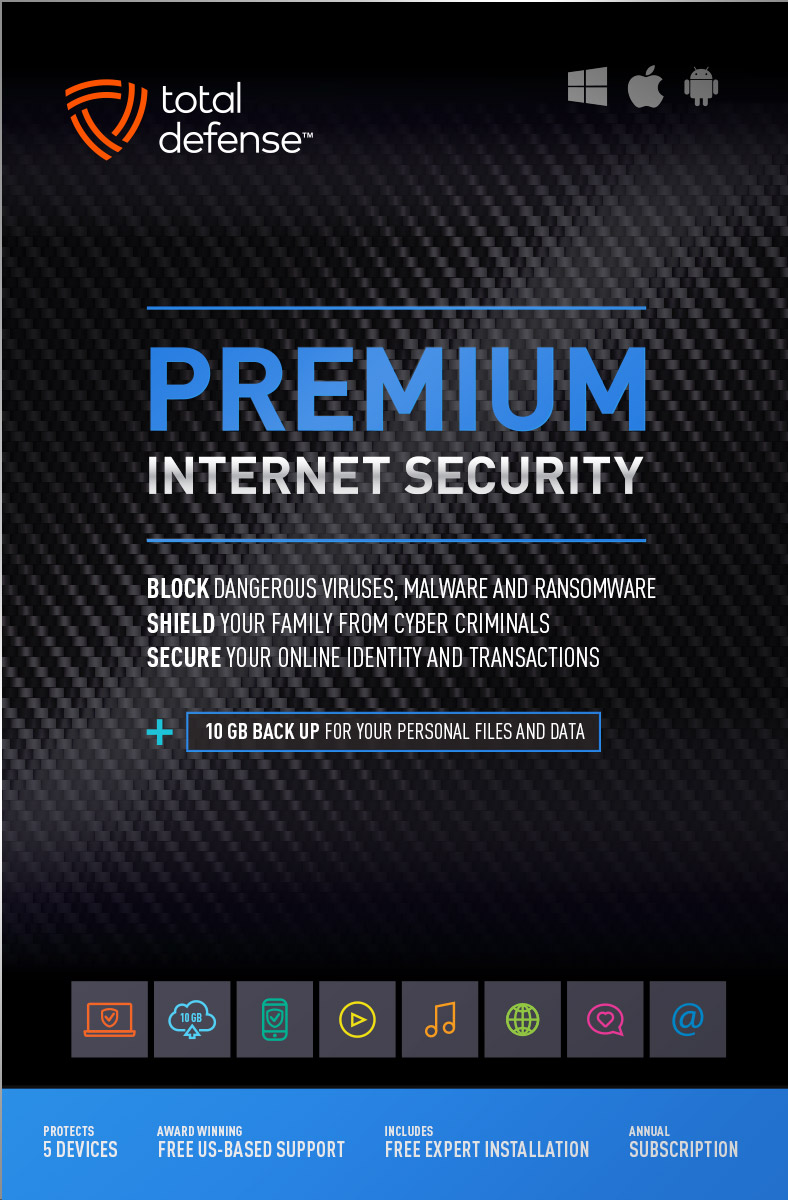
Total Defense
Premium Internet Security

Premium Internet Security provides simple, smart, and reliable protection from viruses, spyware, and malware on up to 5 of your smartphones, tablets, desktops, and laptops.
- Shop, bank and explore your social network without worry
- Protect your information from cyber criminals when you’re shopping and banking online


Our other popular internet security software choices, to keep you and your devices safe.
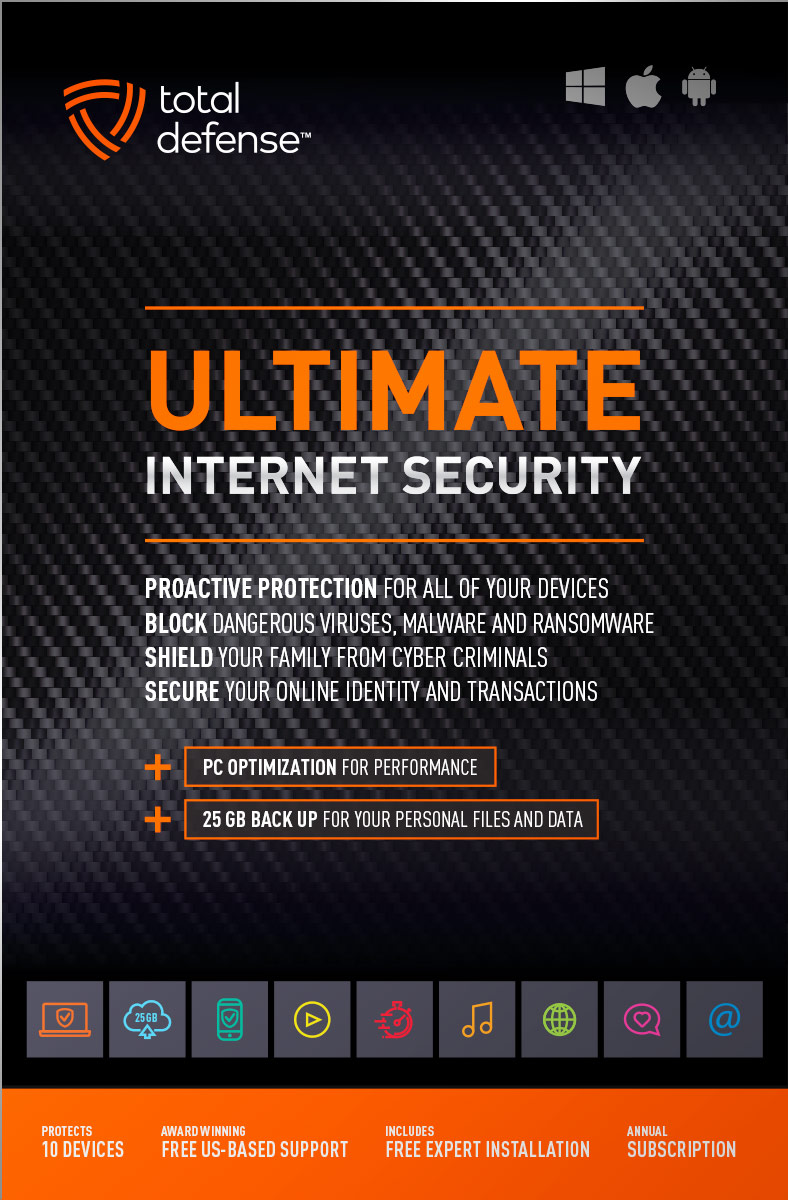
Ultimate Internet Security
Protect everyone on every device in your home - Ultimate is an easy-to-use, all-in-one Internet Security suite that protects you, your family, and up to 10 of your devices from harmful viruses and the latest online threats.
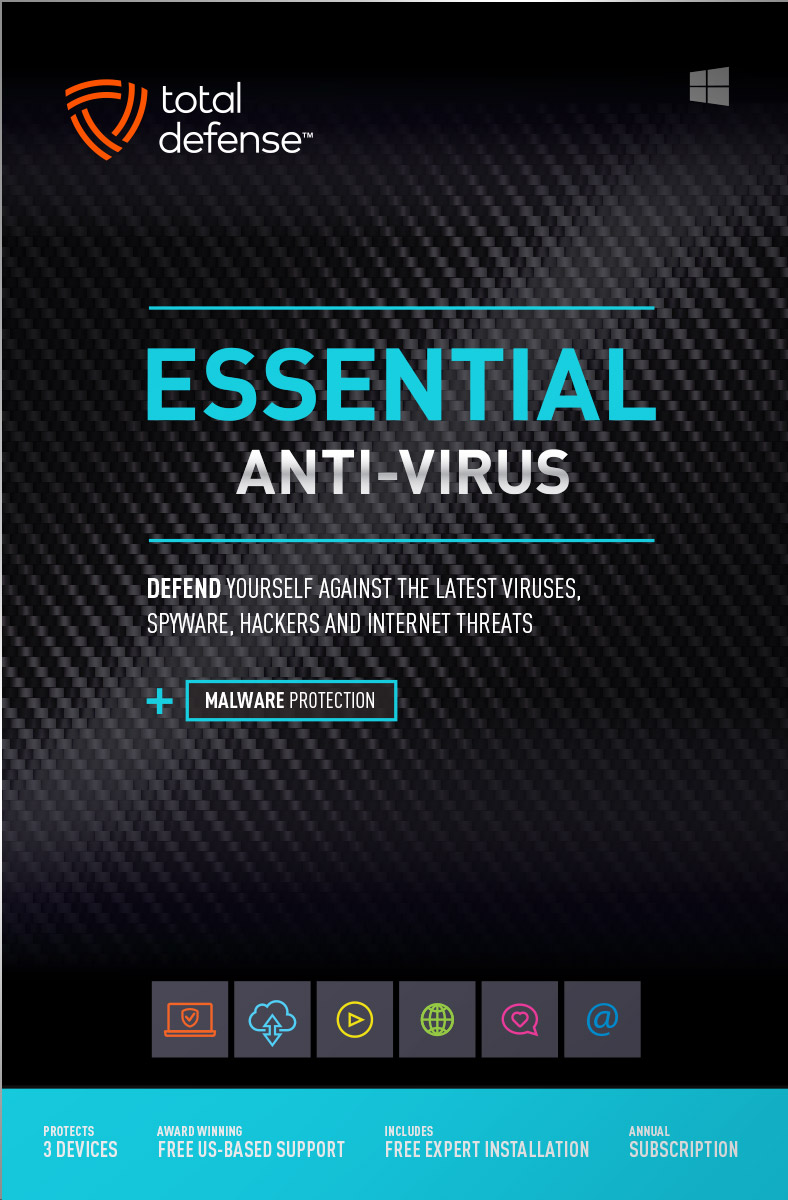
Essential Anti-Virus
Anti-Virus security ensures you’re totally covered keeping your devices safe from malware, spyware, ransomware, and harmful viruses.
Award winning internet security software
Powerful virus detection that doesn’t slow you down.
Learn more about our highly rated malware protection or get started today with a free 30-day trial of Total Defense Internet Security, with no obligation to buy.
Free Trial Download
AV Comparatives Advanced Plus

AV Comparatives Advanced Plus

VB100 Certified

AV Comparatives Advanced Plus
OPSWAT Certified

AV Comparatives Advanced Plus
We will keep you virus-free guaranteed
An exclusive automatic renewal service benefit.
When you choose Total Defense, you’re safeguarded with award-winning, multi-layered virus protection technology. Our powerful security lets you confidently shop, bank and browse online. In fact, we’re so certain we can protect you, if you’re running a Total Defense Security Product and a virus slips past our powerful protection, our expert technology advisors will remove the virus from your device for free. In the unlikely event the virus can’t be removed, we will give you your money back.
»Important terms and offer detailsWe’ve Got You Covered
Over 20 years of Dedication
We are committed to your cybersecurity, from installing the software effectively to helping recovery in the event of a breach.
Advanced Threat Protection
A good offense is the best defense! Real-time and on-demand malware scanning engines provide powerful proactive protection.
Award Winning Security
Powerful protection, securing all entry points, wherever you are, whatever type of device you’re using to access the internet.
Customer Commitment
Our US-based support team is focused on keeping you and your family safe in the ever changing connected world.
Why Total Defense Internet Security >Defend the Defenseless
Total Defense has been a proud supporter of the National Center for Missing & Exploited Children for over 15 years.
Total defense has supported NCMEC in it’s mission to help find missing children, reduce child sexual exploitation and prevent child victimization. We provide quarterly monitary support for NCMEC’s efforts to provide important programs that assist missing and exploited children nationwide.
To learn more about NCMEC, visit www.missingkids.org or see NCMEC on Twitter and Facebook.

Rated #1 anti-virus software company on ConsumerAffairs.com
Over 2,000 customer reviews
We always strive to create the best customer service experience and our customers agree. Total customer satisfaction is our ultimate goal.
Read reviews from our customers>

Total Defense
Internet Security and Safety Center
Helpful tips and articles with practical steps you can follow to improve your online safety

Total Defense Security Tip of the Day
11.05.26
How to check your online privacy before sharing personal information
Before you hand a website your name, email or phone number, check what happens next. Read its privacy policy, inspect its sharing choices and submit only what you need to use the service. You cannot verify every behind-the-scenes practice, but you can avoid giving away information blindly.
You are not alone if this feels confusing. In a 2023 Pew Research Center survey, 67% of U.S. adults said they understood little to nothing about what companies do with their personal data. A focused privacy check can turn that uncertainty into practical decisions.
What should you look for in a website privacy policy?
Find the “Privacy” or “Privacy policy” link before completing a form. Start near the bottom of the website or beside the signup button. Check that the policy names the company operating the service, then use your browser’s find feature to locate these topics:
- Collection: What information does the company collect, including browsing activity, location and details you enter?
- Purpose: Does it need the information to deliver your order, personalize content, advertise or build a profile?
- Sharing: Who receives it—service providers, affiliated businesses, advertising partners or other organizations?
- Retention: How long does it keep your information, and what happens after you close your account?
- Choices: How can you change marketing preferences, request deletion or contact someone with privacy questions?
Look for specific explanations, not just “we value your privacy.” The FTC emphasizes that businesses must honor their privacy promises, but a posted policy alone does not establish that a company handles data safely.
Does sharing with partners always mean selling your data?
No. A company might share information with a vendor that processes orders or sends service emails. It might also disclose information to partners that market related products. Read the stated purpose and available controls rather than treating every partner relationship as identical. If “trusted partners” leaves you guessing, ask who receives your information and why.
How can you limit what a website collects?
Turn the policy review into action before clicking “Submit.” Follow these steps each time you try an unfamiliar service:
- First, question the form. Leave optional fields blank. Ask why a newsletter needs your birthday or home address.
- Next, separate service from marketing. Decline optional promotional emails and partner mailing lists unless you actually want them.
- Then, check tracking choices. Where available, reject nonessential cookies and review advertising preferences rather than automatically accepting everything.
- Finally, inspect permissions. Deny location, camera, microphone or contacts access unless the feature needs it. Revisit those choices in browser and device settings.
The FTC’s explanation of online tracking recommends adjusting privacy settings and turning off unnecessary app permissions. These controls complement your policy review; neither step replaces the other.
Does private browsing stop websites from tracking you?
No. Private browsing can limit the history your browser keeps after a session, but it does not stop websites from seeing your activity. Do not treat it as permission to submit sensitive information to an unfamiliar business.
What if a website has no clear privacy policy?
Pause before sharing anything. Contact the company through independently verified contact details and ask how it uses, shares and retains your information. Do not send sensitive documents just to get an answer. If you cannot find a policy or get a clear explanation, choose another service.
How often should you review your privacy choices?
Recheck policies on sites you use often, especially after an update notice or before adding sensitive information. Compare changes to sharing, retention and marketing choices. Save important preferences and revisit them periodically.
Start today with one frequently used account. Remove unnecessary profile details, switch off unwanted marketing and review permissions. Sharing less gives companies less information to retain or pass along—and gives you fewer privacy decisions to untangle later.

How to protect your devices, passwords, and online accounts while traveling
Questions? Our friendly award winning US-based support team is happy to help and it’s free.
1-877-906-8816 Weekdays 9am – 5pm, Eastern Time USA


60 Day Money Back Guarantee

Money Back Guarantee Program
Total Defense is committed to helping you with your refund. If our product does not meet your expectations for any reason, we will provide a full refund within 60 days of your purchase.
Virus Protection Assurance Program
Virus Protection Assurance Program
An exclusive benefit for customers enrolled in the Automatic Renewal Service.
When you choose Total Defense, you’re safeguarded with award-winning, multi-layered virus protection technology. Our powerful security lets you confidently shop, bank and browse online. In fact, we’re so certain we can protect you, if you’re running a Total Defense Security Product and a virus slips past our powerful protection, our expert technology advisors will remove the virus from your device for free. In the unlikely event the virus can’t be removed, we will give you your money back.
»Important terms and offer detailsFree US-Based Support Team
Need Assistance?
US-Based Support • Weekdays 9am – 5pm, Eastern Time USA
Technical Support
Call 1-866-305-7989
or Email
Free technical support includes:
- Download and installation
- Activation and configuration
- Removal of conflicting AV software
- Updates and upgrades
Customer Care
Call 1-877-906-8816
or Email
Customer care assists with:
- Sales and orders
- Account information
- Renewals
- Refunds
- Rebates
- Billing Inquiries
The VB100 Award
VB100 Certification
The VB100 award is a certification of products which meet the basic standards required to be recognized as legitimate and properly functioning anti-malware solutions.
To display a VB100 logo, a product must:- Prove it can detect 100% of malware samples listed as ‘In the Wild’ by the WildList Organization
- Generate no false positives when scanning an extensive test set of clean samples.
- All this must be done with default, out-of-the-box settings in the VB lab environment.




